How to Print Recipes from a Food Blog or Website
When I first started blogging in 2004, food blogs were much simpler than they are today. Most of us were thrilled if we managed to publish one clear photo with a recipe. At the time, the most useful features on a blog were usually a comment section, where readers could ask questions, and a blogroll, where visitors could discover other food writers and recipe sites. Those were the small details that made a blog feel connected and easy to use.
As blogs became more polished, new features began appearing everywhere. Print buttons, social media links, newsletter sign-up forms, embedded feeds, sharing tools, and recipe cards all became common additions. Over time, however, some of the older features became less noticeable or disappeared entirely. Many sites still keep comment sections, but print buttons and blogrolls are not nearly as common as they once were.
There is no single moment when print buttons started to fade from food blogs and recipe websites. The change happened gradually, especially as mobile devices became a regular part of everyday cooking. Many readers now bring a phone or tablet into the kitchen and follow the recipe directly from the screen. Because of that, some bloggers choose to simplify their site design and make more room for mobile-friendly features, social buttons, or cleaner layouts.
Even so, plenty of home cooks still prefer a printed recipe. A paper copy is easy to place on the counter, mark up with notes, and keep away from a phone or tablet screen. If flour, butter, sauce, or water splashes onto a printed page, it is not a disaster. You can simply print another copy later. Printed recipes are also convenient when you want to write down substitutions, timing changes, ingredient swaps, or personal adjustments for the next time you make the dish.
This guide is for anyone who has visited a food blog, found a recipe they want to save, and wished there were an obvious print button. Even when a recipe website does not include a dedicated printing feature, you can still print the recipe with just a few clicks. Whether you are using a Windows computer or a Mac, the process is simple once you know where to look.
How to Print Recipes from a Food Blog
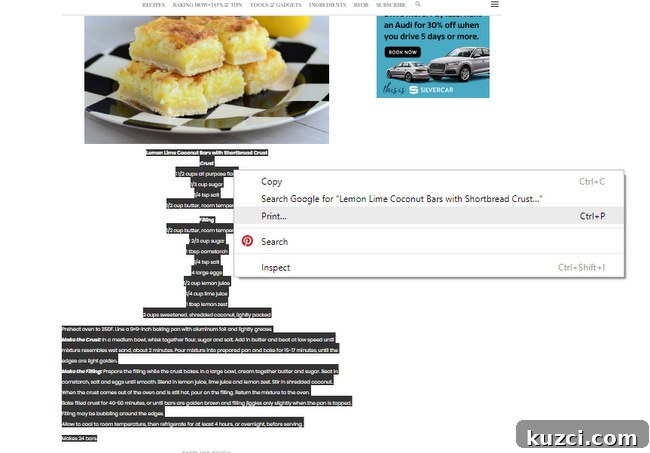
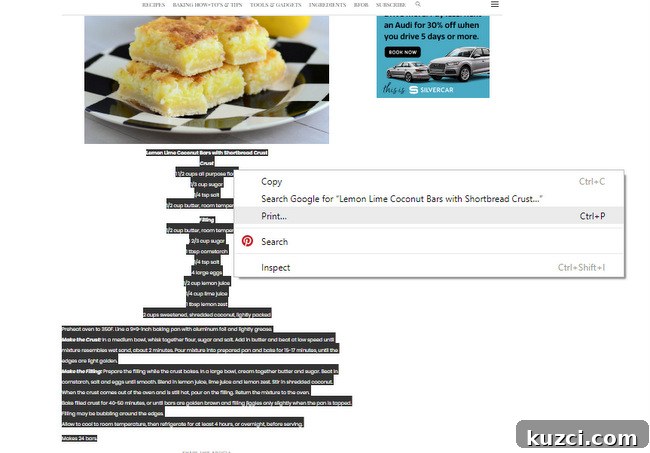
On Windows: To print only the recipe text, use your mouse to highlight the part of the post you want to print. This might include the recipe title, ingredients, instructions, notes, and any other details you need. After highlighting the text, right click on the selected area and choose the print option if it appears. You can also press Ctrl+P on your keyboard to open the print window.
Once the print window opens, check the available settings. Many browsers will automatically recognize that you have selected specific text and will offer to print only that selection. If it does not, look through the print settings for an option such as Print Selection or a similar setting. Choosing this option helps you avoid printing the entire page, including extra photos, comments, sidebars, or advertisements.
You can also use the browser menu to print. In many browsers, the print command is found under the File menu. Select Print, review the preview if one is available, adjust the settings as needed, and then send the recipe to your printer.
If you want to print the entire page exactly as it appears on the website, including photos and other page elements, do not highlight any text before printing. Simply open the print command and proceed from there. Keep in mind that printing the full page may use more paper and ink than printing only the recipe.
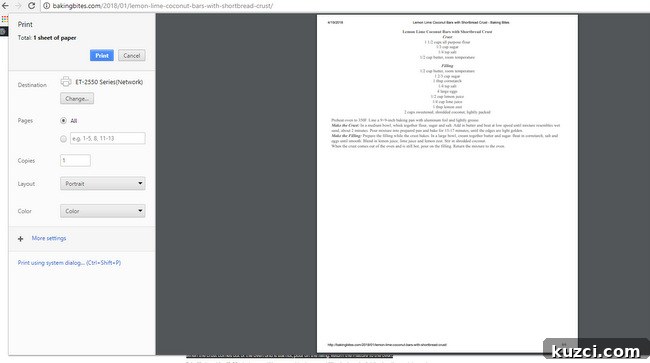
On a Mac: Printing a recipe from a Mac is very similar to printing from a Windows computer. If you are using Safari, move your mouse to the top left corner of the screen and select the File menu. From there, scroll down and click Print. You can also use the keyboard shortcut Command+P to open the print window quickly.
Before printing, review the preview and settings. If you have highlighted only the recipe text, look for an option that allows you to print the selected content. If you do not highlight anything, your browser may prepare the full web page for printing. This can be useful if you want the photos included, but it may not be the best option if you only need the ingredients and instructions.
To eliminate photos when printing a recipe: Sometimes you may want to print a full recipe without images. Photos can be helpful while you are cooking, especially when they show steps in the process, but they can also use a lot of printer ink. If you want a cleaner, text-only version, copy the recipe text and paste it into a plain text or word-processing program.
On a Windows computer, you can use a simple program such as Notepad. On a Mac, you can use TextEdit with rich text formatting turned off. You can also paste the recipe into the body of an email if rich text formatting is disabled. Using a plain text format helps remove images and extra styling, leaving you with just the words you need.
After pasting the recipe, take a moment to clean up the formatting. Add line breaks between the ingredients and instructions, remove anything you do not need, and make sure the recipe is easy to read. Once the text looks clear, print it from that program. This method is especially useful when a food blog does not have a print button or when the page includes large images that you would rather not print.
Printing recipes from a food blog or recipe website does not have to be complicated. Whether you print directly from your browser or copy the recipe into a text document first, you can create a useful paper copy for your kitchen in just a few minutes.